The Many One Drives You Have
One of the most confusing things about Microsoft 365 business accounts is that there are many accounts on every desktop. Microsoft makes this more confusing by having two different types of "Microsoft" accounts. There's an Outlook/Xbox/Learn account and work/school accounts. EPI provides you with a work or school account for your business. You might have an Outlook account on your own because you have an Xbox console in your living room, you at one point installed Windows Home edition on some other device or you have a https://learn.microsoft.com account. It's important to know which account you are talking about.
We'll get the personal account out of the way. It's the account that is forced on you when you open a new laptop that was purchased with Windows 11 Home as the operating system. Please note that Windows 11 Pro computers do not have the personal Microsoft account requirement and should be used for all business computers.

Each of the above One Drive icons represents a One Drive account. On most PCs, you will only have a single "white icon" One Drive as denoted by the red circle in the image above. This is your personal One Drive account that comes with your Outlook.com or Xbox account.
For each work or school account that you have, you will have a "blue icon" One Drive. This represents that company's corporate files that you are authorized to see. Access to the files in One Drive is governed by membership in one or more teams in Microsoft Teams. Your company administrators or manager can help you access the correct teams which will in turn give you access to the files that you need for work.
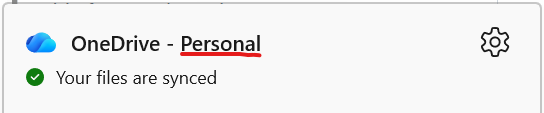
Clicking the "white icon" One Drive will indicate that this is your Personal One Drive account.
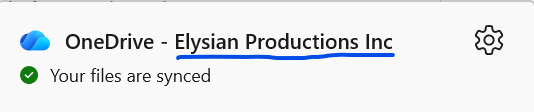
Clicking the "blue icon" One Drive will indicate that this is your Work or School account One Drive and it will tell you which company owns the access to the documents.
Selecting the "Gear" icon -> Settings -> Account from these menus will tell you which folders are synchronized to your desktop.
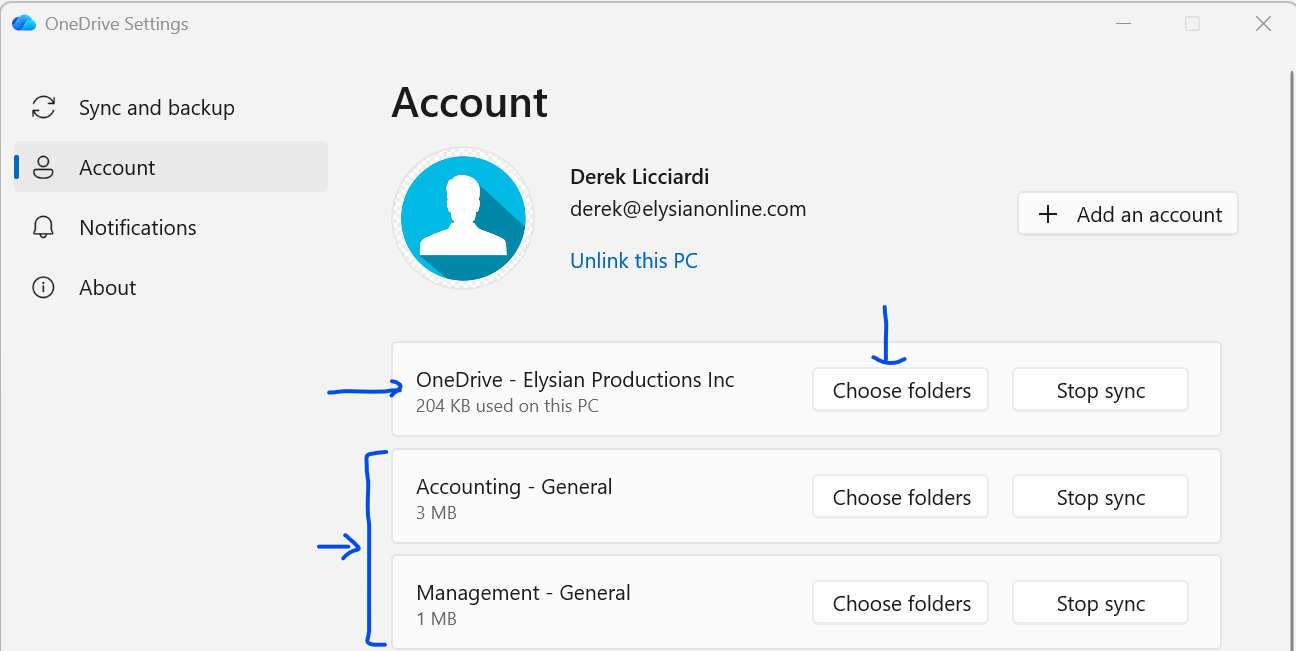
In the above image, there are a few important pieces of information.
- For any of the synchronized folders, you can choose to stop synchronization which will remove the contents of the folders from your PC and you can select the folders under that location that are being synchronized.
- The first item in the list is your "Employee" One Drive. This is a company managed personal storage space that only you can see. Files from this set of folders can be shared with other members in and outside of your organization if your administrators allow sharing which is on by default. Who has access to the files in this folder list is determined by the employee and managed by the employee.
- The "Team Name - Channel Name" folders are shared documents from a team that you have been assigned. This is company shared storage that allows team membership to govern access.
One Drive in Windows Explorer
One of the advantages of One Drive managing all of this is that you can "sync" the contents of these folders to your Windows Explorer application. We explain everything about accounts above because where the files are synchronized depends on which account is synchronized.
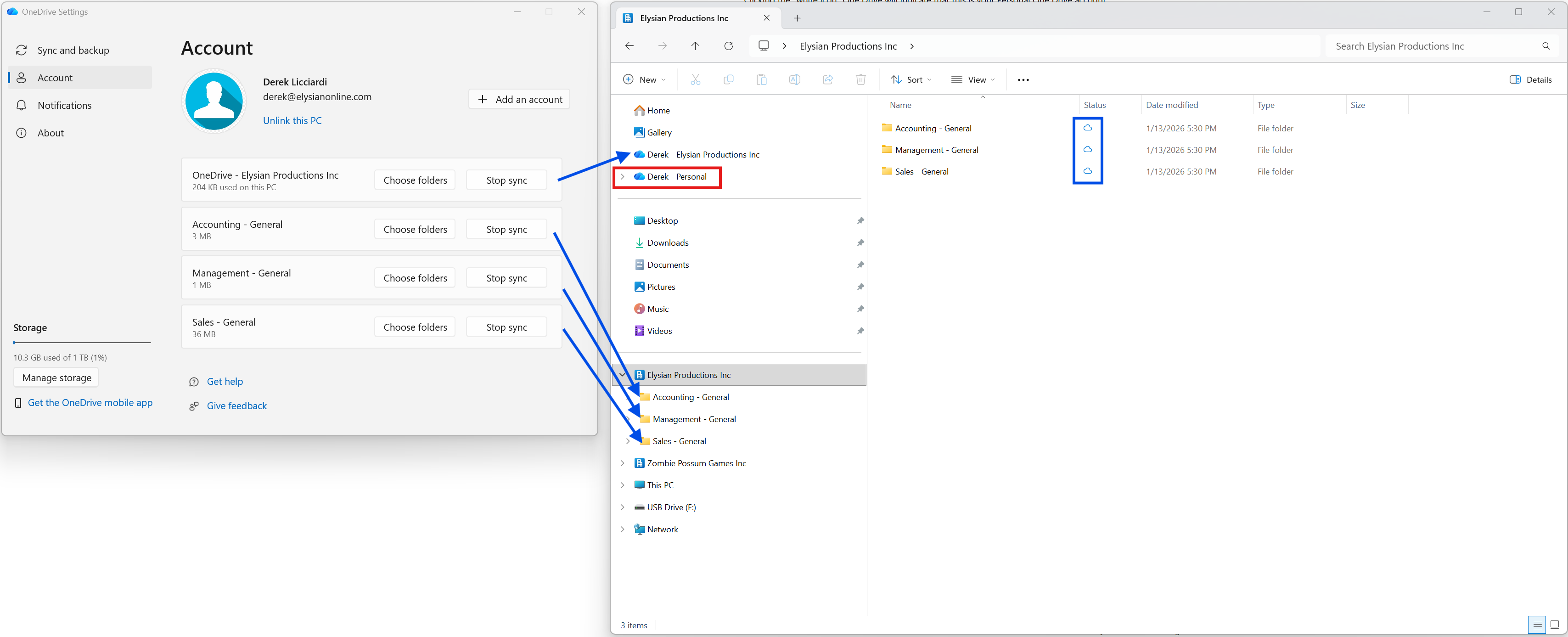
The "red rectangle" is your Personal Microsoft Account's One Drive when you choose to synchronize it. Doing so is completely optional on a work computer. It's your personal files. Anything present in the personal file space can be seen by company applications once the account is synchronized to a work computer.
The "blue arrow" pointing to the One Drive that is above the "red rectangle" is your Employee One Drive. Only you can see the files here but they are owned, managed and controlled by the company account. You can expect the contents of this folder location to be given to another employee when you leave the company so use it for official business only.
The three "blue arrows" pointing to the "Elysian Productions Inc" icon at the bottom are synchronized Team's document libraries. These are managed by your company and membership is typically added by your manager or IT administrators.
For all One Drive folders, you can tell if the folder is synchronized by the presence of the cloud icons in the "blue rectangle".
- Blue cloud icon means that you know about the file but its contents are stored online.
- Green circle with a check mark icon indicates that the contents of the file are on your local hard drive and synchronized with the cloud correctly.
- A blue processing icon means that the document is currently being synchronized.
- A blue cloud icon with a red X inside of it means that this document is a source of synchronization issues and you will need to take action to resolve the sync problem.
While there is a sync problem with any individual document, you will not receive any updates for any other documents until the sync problem is resolved. This can and will cause further sync issues the more you delay resolving the issue.
Synchronizing to Your Desktop
Teams Channels
Synchronizing work documents from a Teams channel requires you to log in to the Teams client from the website https://teams.microsoft.com or by opening the Teams desktop client. Either method works exactly the same.
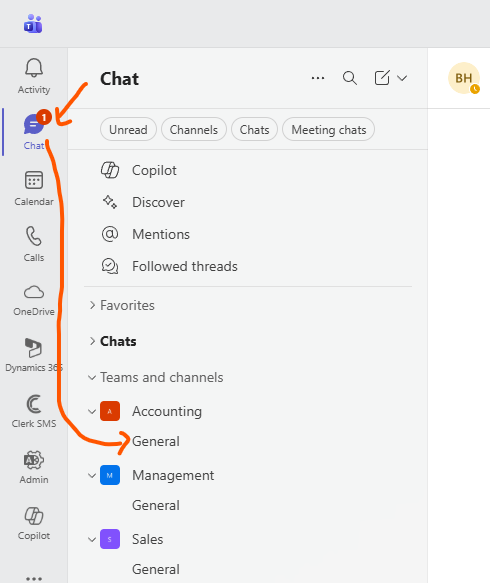
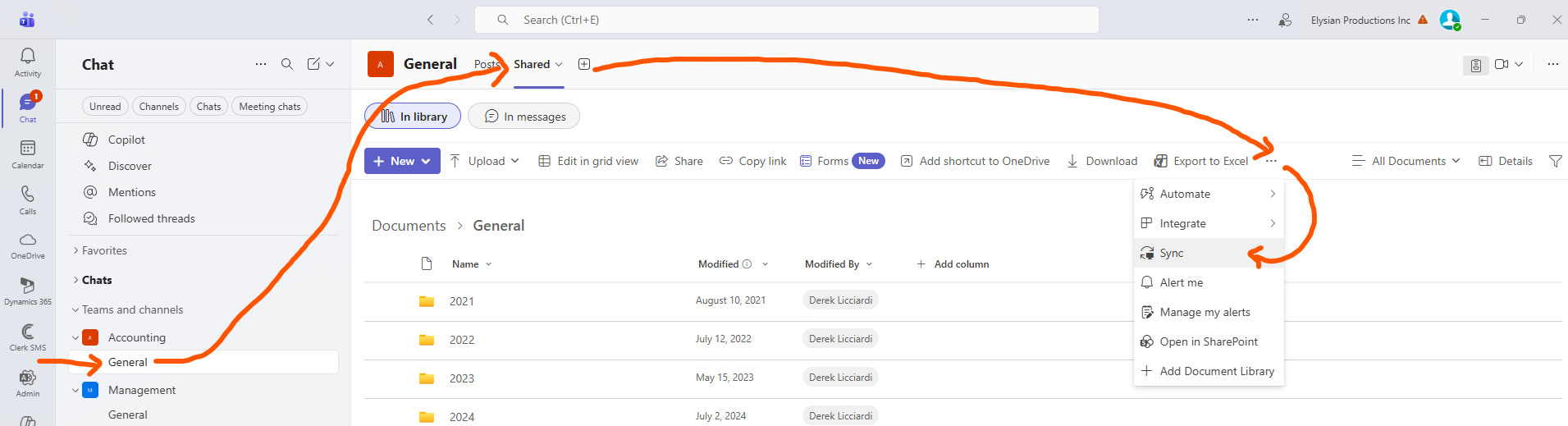
With the application open, choose "Chat" from the left hand menu and then select the team and channel that you wish to synchronize. With the correct channel selected, choose "Shared", select the "three dots" from the menu and then choose the "sync" menu item.
If this is the first time you have synced a folder, One Drive will ask you to sign in and walk you through a few steps to get the folder for your company registered and setup correctly. For the most part, this is a simple exercise in clicking next until the dialog is completed. If you are synchronizing another channel after the first one, the folder will be added to Windows Explorer and it will look like it did not work. You might see a small dialog appear and then disappear. Easiest way to see if it completed successfully is to open Windows Explorer and check to see if the files are in their expected location.
Employee One Drive
Once you have synchronized your first Teams One Drive folder, you will notice that you have one of the "blue cloud" icons in your task tray like this article shows in the first section. Click that icon, select the gear icon and then choose the "settings" menu to bring up the Account settings page.
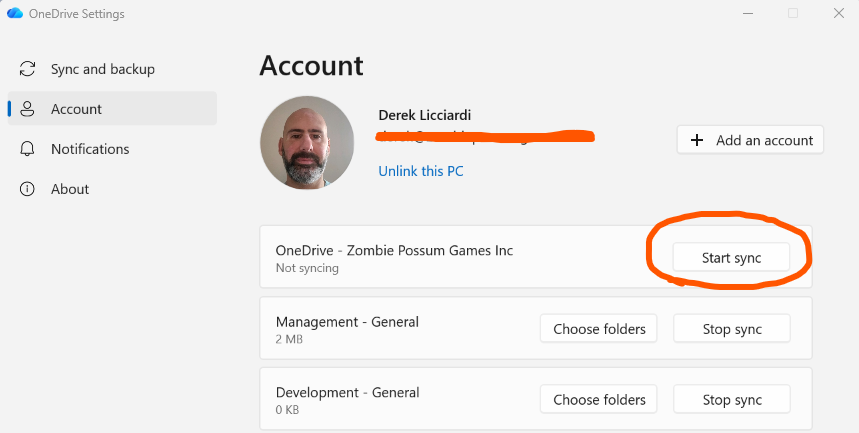
There will be a "Start Sync" button next to your Employee One Drive that will create the necessary folder in Windows Explorer.
Final Thoughts
The files in Windows Explorer, One Drive on the web, One Drive on your phone and Teams on the web or desktop are all the same files. When you edit a file in Teams, it will synchronize to everyone's Windows Explorer without any further action on your part. When you edit a file in Windows Explorer through one of the Office desktop applications, it will automatically save and synchronize to other members.
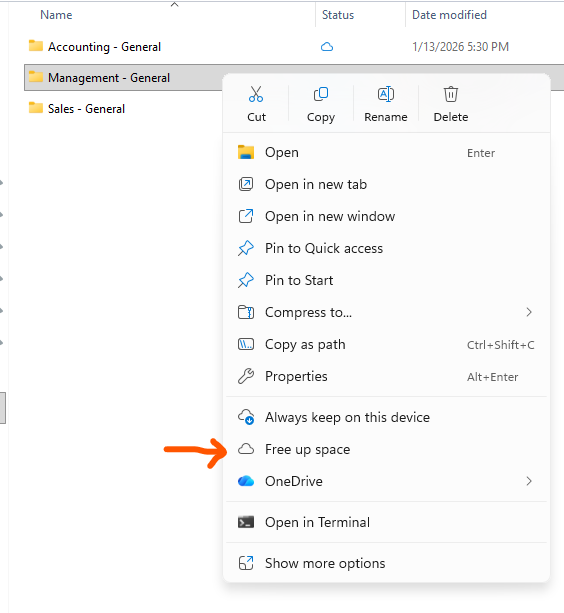
If you are running out of disk space on your machine, open Windows Explorer and right click any folder with a One Drive icon then choose "Free Up Space". This will remove the file from your local disk while keeping it online. The next time you access the file, it will be downloaded again.
Use the "Share" menu from right clicking a file or folder to share access to files with someone.
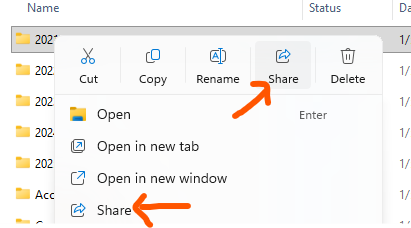
Sharing a file is governed by your organization. In the default state, you can share files in read and write mode with anyone that has an email address regardless of the source of that email address. Share files with people that have Yahoo addresses or GMail addresses in exactly the same way that you would another Microsoft email address.
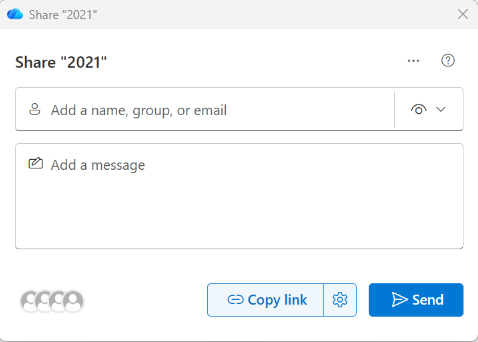
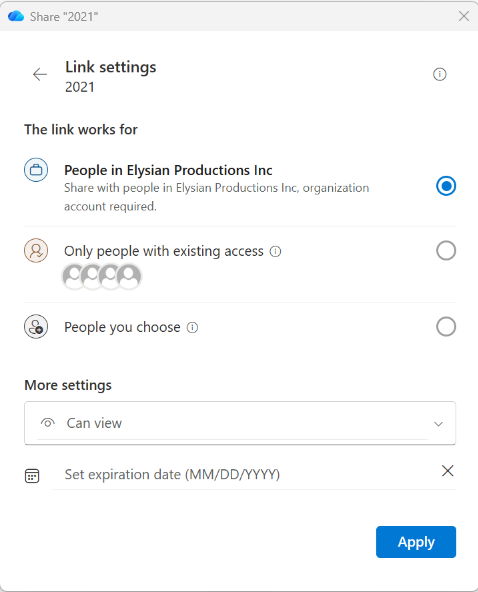
You do not need to manage sharing directly like this for Teams Channels. Sharing of those files should be done through guest accounts and members added to the team itself using the Teams Client.
Was this article helpful?
That’s Great!
Thank you for your feedback
Sorry! We couldn't be helpful
Thank you for your feedback
Feedback sent
We appreciate your effort and will try to fix the article