Important
The following steps apply only to devices currently running an activated copy of Windows 11 Home. If Windows 11 isn't activated, We recommend activating Windows 11 Home first.
NOTE: This example already has Pro so the options may differ slightly.
To upgrade from Windows 11 Home to Windows 11 Pro manually, first check which edition is running and the activation state:
- Select start

- Settings

- System

- Activation

- Settings
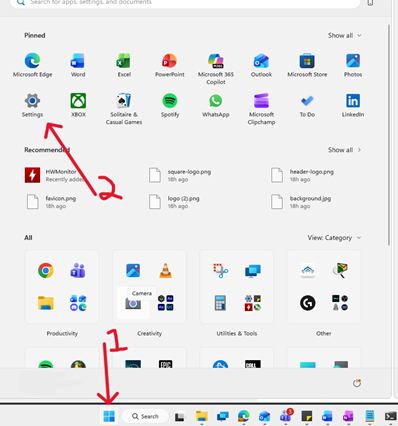
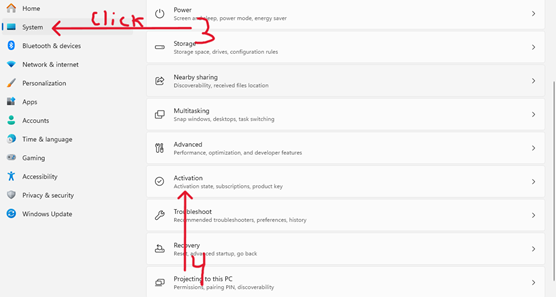
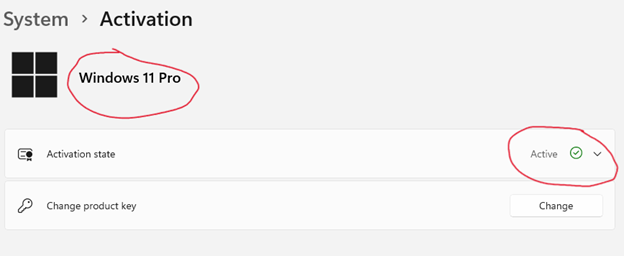
*Note which version you have and what activation state it's in. If it is Active proceed to next step. If not, you should have a Product Key that came with your laptop/desktop. Click "Upgrade your edition of Windows" Click change product key and enter it here.
Now to purchase windows 11 Pro
2. Click or copy this link to be taken directly to the purchase store. ms-windows-store://pdp/?productid=BF712690PL0G&OCID=windowsproupgradesupportpage OR click Upgrade your edition of Windows then upgrade in microsoft app. Otherwise follow the prompts below.
3. Click Open on the prompt in the browser you pasted the link in.
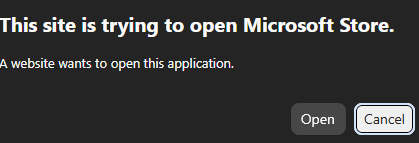
4. Purchase the license. And obtain the product key.
5. Go to step 1 and then click “Upgrade your edition of Windows”
6. Click Change
- Enter your Upgrade key
- Click next
PS: If you get an error about validation. Turn off your wifi and try to enter the Key once more.
The Computer will restart a couple of times in the midst of the upgrade.
Please reach out to Support if you have any questions or problems.
Was this article helpful?
That’s Great!
Thank you for your feedback
Sorry! We couldn't be helpful
Thank you for your feedback
Feedback sent
We appreciate your effort and will try to fix the article